How to create a staff booking
Walk-in or phone — same form.
If OutfitterAI is on, Ask can talk through the trip and fill this form. From the grid (desktop) that is the side panel. You still Save. Drag the chat aside if it covers the form. See How to take a booking with Ask.
From the grid
Click or drag empty days on a boat row, then release. New booking opens with those dates and that boat. A dashed block stays on the grid for those slots — and any other boats you add — until you Save or go back. If another trip was open in the side panel, this replaces it.
Picked the wrong row, or the customer changed their mind on dates? Drag the dashed block. Drop it on another boat and the form swaps to that hull; drop it on other days and the dates slide over, same length. Both at once works. The quote and the recommended-boats list update from the new spot. If you drop it on days that boat already has a trip, the grid says so — with the boat and the dates — and leaves the block where it was.
Need a second hull on the same trip? Hold Shift and click that boat’s empty day. It joins the open form. Shift-click it again to take it off. A plain click on one empty day while New booking is open still adds that boat the old way.
Steps
- New booking (or drag empty days on the grid).
- Customer, dates, access/exit, party size. If your layout is set to split address, the new-guest boxes (street, city, province, postal) are already open — you do not type one line and press Enter to get them. Search is still there for a return guest. Otherwise address is one line. Delivery and pickup tick from the boats; change the boxes if the truck plan is different. If the start and return lakes are a pair your shop marked as not paddleable (or experienced-only and the group is Novice), an amber note appears under them. It warns; you can still save. See How to mark places guests can't travel between.
- If Custom fields is on (Settings → Advanced), extra questions you added show on this form — per person after party size, or once for the trip. See How to add extra booking questions.
- Review recommended boats (comfortable seating). If the extra boat adds a truck run, you will see that, and a Use squeeze choice if packing tighter would save the run. Change hulls if the customer wants a specific one. If there are no free boats, the form may offer making room by taking a boat off another paid trip — that needs an explicit confirm.
- Check quote lines (boats, inclusions, fees, tax).
- Optional, on the Finish step: How did this booking come in? Tap Phone, Email, Walk-in, or Other. It feeds the Booking breakdown report; skip it and the booking counts as "Staff (not recorded)". You can set it later on the booking page.
- Save. The next step is the deposit: Record cash or Record terminal (or card) actually takes the money. Done does not — it only leaves after a deposit is recorded, and sends the confirmation email. Skip for now leaves it unpaid; you can record it later on the booking.
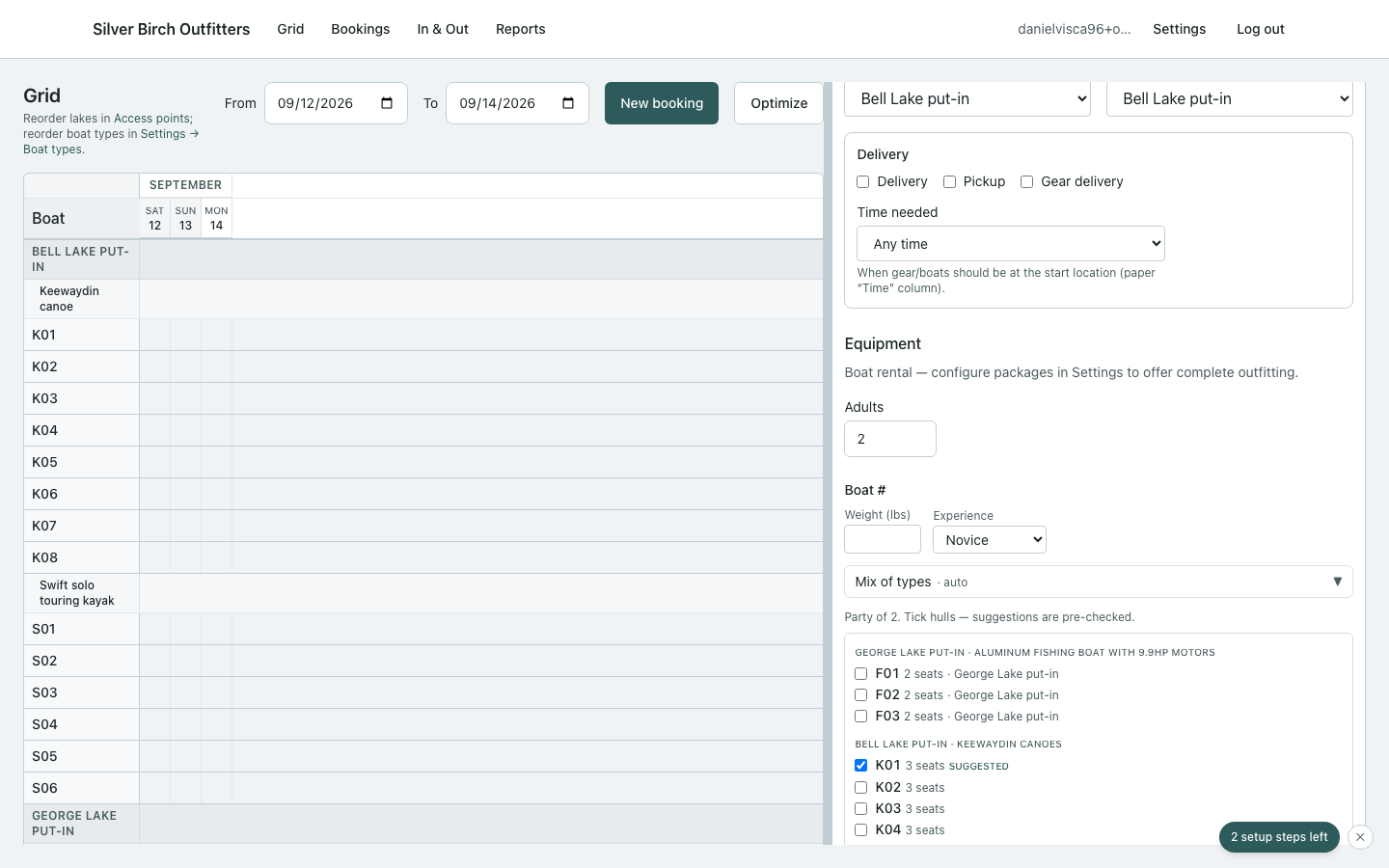
Engine pick is ticked on create unless your layout is set to staff-pick-first (Booking form → Layout → Boat recommendation). Named hulls from Ask stay. On edit, booked hulls stay and the recommendation is opt-in.
Backdated trips
Staff can save a booking that is entirely or partly before today. The form warns you; it does not block save. Guest online booking still will not take a start date in the past.
Force save
If pooled gear is short, Force save anyway keeps the booking and flags needs attention — same idea as force on the grid.